Handling a full Azure VNET
When an Azure VNET runs out of free space to allocate to subnets and resources, don’t panic. It can easily be extended either by increasing the existing IP Range, or by adding additional ranges. These additional ranges don’t need to be contiguous with the original range, so if you’ve neatly stacked your VNET address spaces you don’t need to shuffle all your other VNETs about.
The best bit is this can all be done live with little or no impact on running Virtual Machines.
Start Here
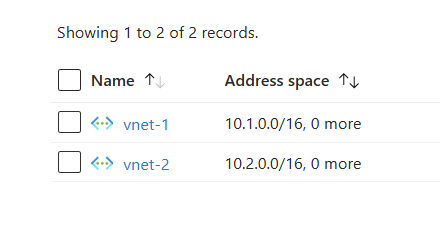
In the following examples I’ll be using a test environment consisting of 2 peered VNETs, each containing subnets.
| VNET Name | VNET Address Space |
|---|---|
| vnet-1 | 10.1.0.0/16 (10.1.0.0 - 10.1.255.255) |
| vnet-2 | 10.2.0.0/16 (10.2.0.0 - 10.2.255.255) |
Some example Terraform code to create this demo pair of networks can be found here on Github Gist. The important bits to note, which we will be changing later, are the address_space definitions:
1address_space = ["10.1.0.0/16"]
1address_space = ["10.2.0.0/16"]
Example 1 - Extending the address space of a VNET.
In this example we will extend vnet-2 from 10.2.0.0/16 to 10.2.0.0/15 - doubling it’s size. The two VNETs would then look like this:
| VNET Name | VNET Address Space |
|---|---|
| vnet-1 | 10.1.0.0/16 (10.1.0.0 - 10.1.255.255) |
| vnet-2 | 10.2.0.0/15 (10.2.0.0 - 10.3.255.255) |
To make this change in Terraform, the address_space value for vnet-2 needs changing as follows and then the plan/apply cycle repeating
1address_space = ["10.2.0.0/15"]
Example 2 - Adding an additional range to a VNET
In this example we will extend vnet-1 by adding an additional range 10.4.0.0/24. This would make the VNETs look like this:
| VNET Name | VNET Address Space |
|---|---|
| vnet-1 | 10.1.0.0/16 (10.1.0.0 - 10.1.255.255), 10.4.0.0/24 (10.4.0.0 - 10.4.0.255) |
| vnet-2 | 10.2.0.0/15 (10.2.0.0 - 10.3.255.255) |
To make this change in Terraform, the address_space value for vnet-1 needs changing as follows and then the plan/apply cycle repeating
1address_space = ["10.1.0.0/16", "10.4.0.0/24"]
The Gotcha - Peerings
This all happens smoothly, almost. If the extended VNET has a peering, the peering will need to be resynced following the expansion before it will work. When looking at the peerings in the Azure Portal, the message “This virtual network is unable to connect to all the address spaces in 1 peered virtual networks and must be synced.” will be shown. Peering can be re-synced from there:
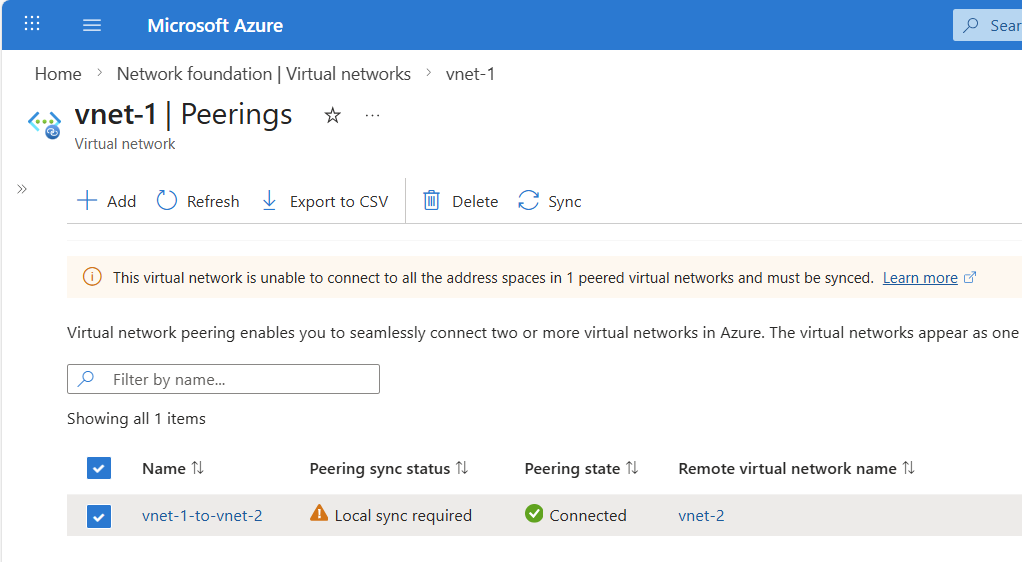
Or alternatively, PowerShell can be used:
1Sync-AzVirtualNetworkPeering -Name vnet-1-to-vnet-2 -VirtualNetworkName vnet-1 -ResourceGroupName rg-vnet-extend-demo
So in conclusion, if your VNET has run out of space don’t panic, Azure provides the flexibility to extend the range either by stretching it or adding another IPv4 space altogether. The change is non-disruptive to the virtual machines and other workloads, but will break any peerings to other VNETs so allow potential downtime as appropriate when scheduling these operations.